A controlled diagnostic sequence
- 1
Record the route
Identify the exact source, TV output and audio-system input.
- 2
Compare one programme
Keep the cable and input fixed while checking a documented compatible format.
- 3
Separate the sources
Compare an internal TV app with an external HDMI source.
- 4
Record the result
Keep the working baseline or send the comparison record to support.
1.Draw the route you are actually using
Write down the source, TV, cable and destination: for example, streaming box → HDMI input on TV → optical output → optical input on soundbar. Add the exact model names. This simple record exposes an easy mistake: selecting the streaming box's name on the receiver while the physical optical cable is assigned to a different input.
Use the labels printed beside the ports and the input-assignment section of your manual. Product names on the remote are not necessarily the names of physical sockets. If the soundbar offers Bluetooth, HDMI and optical, record which input is active before changing the TV.
Start at a modest listening level. When sound returns unexpectedly, a high volume setting is an unwelcome surprise. Keep the remote nearby, and avoid handling damaged cables or opening equipment.
| Observation | Investigate next | What it does not prove |
|---|---|---|
| Every tested source is silent | Selected output, destination input and physical connection | That the optical cable is defective |
| Internal app works; HDMI source is silent | External-source output and the TV forwarding capability | That the receiver needs replacing |
| One app or programme is silent | Track selection and output compatibility | A fault affecting the whole TV |
| Sound returns after a format change | Compatibility along this route | That the new setting is best for every programme |
2.Separate the source from the output
Choose one programme with clearly audible speech. Note whether it plays through the TV speakers, then restore the external-output route for the comparison. Do not assume that menu navigation sounds prove that a film's audio track is working.
Compare an internal TV app with an external HDMI source, keeping the cable and audio-system input unchanged. Use the symptom table above to decide what to investigate next.
Record the exact comparison rather than “Netflix works” or “HDMI fails.” App versions, audio tracks and device settings can differ. Sony's optical-output support article specifically notes that forwarding sound from external inputs can depend on the TV; use the documentation for your own model.
3.Use PCM as a compatibility check
If your destination supports stereo PCM over its optical input, temporarily select PCM in the TV's digital-output settings. Check the manual for the menu name; it may differ from the input audio setting. Preserve the previous value so you can restore it.
If dialogue now plays through the same cable and input, you have evidence that this path can carry that test signal. Investigate the earlier output format and the destination's decoder support before buying a new cable. You have not demonstrated that every audio format or every source will work.
Samsung's format guidance distinguishes PCM from compressed surround output and describes Dolby Digital as an optical option for compatible equipment. The operative word is compatible. A stereo DAC, a soundbar and an AV receiver can accept different signals even when their sockets look similar.
The PCM and bitstream decision matters after you have established which formats your destination supports.
For the broader decoding-mode decision, read PCM vs Bitstream: Choose the Right Audio Output for Your Receiver.
(1)Keep a reversible test record
- Record the source, programme and selected audio track.
- Write down the TV output setting and destination input.
- Change only one setting or cable per comparison.
- Use a modest listening level and preserve the previous settings.
4.Read the format table for the actual input
A product advertising a surround format does not establish that it accepts that format through every connection. Look for a table that names both the audio format and the optical input.
For example, Sony's STR-DN1080 documentation lists Dolby Digital and DTS on optical, while multichannel linear PCM and Dolby TrueHD use other listed connections. That table describes that receiver. It is not a promise about your soundbar, nor a reason to enable an unsupported output on another product.
Avoid changing three devices to “Auto” at once. Instead, establish one documented compatible route, confirm the test programme, then change only the format you need to investigate. If the TV cannot pass the desired source format to the destination, choosing a different supported route may be necessary. An HDMI return connection is a separate route with its own compatibility requirements.
If you need to evaluate an HDMI return route, see HDMI ARC vs eARC: Formats, Connections and Common Problems.
5.Check the physical connection without guessing
With equipment in a safe state for reconnecting according to its instructions, check that the cable runs from output to input. Remove any shipping protection from the plug if present, align its keyed shape and seat it without force. Do not force the plug against a closed socket flap, sharply bend the cable or pull it by the thin lead.
If a documented compatible signal is still silent, a known-working cable is a useful controlled substitution. Keep the programme, settings and destination input fixed. A simultaneous cable swap and format change cannot identify which change restored sound.
Do not stare into an optical port or cable end. A visible glow is not a decoder report and cannot tell you which audio format the destination receives. Prefer the equipment's information display and actual playback result over a visual guess about the light.
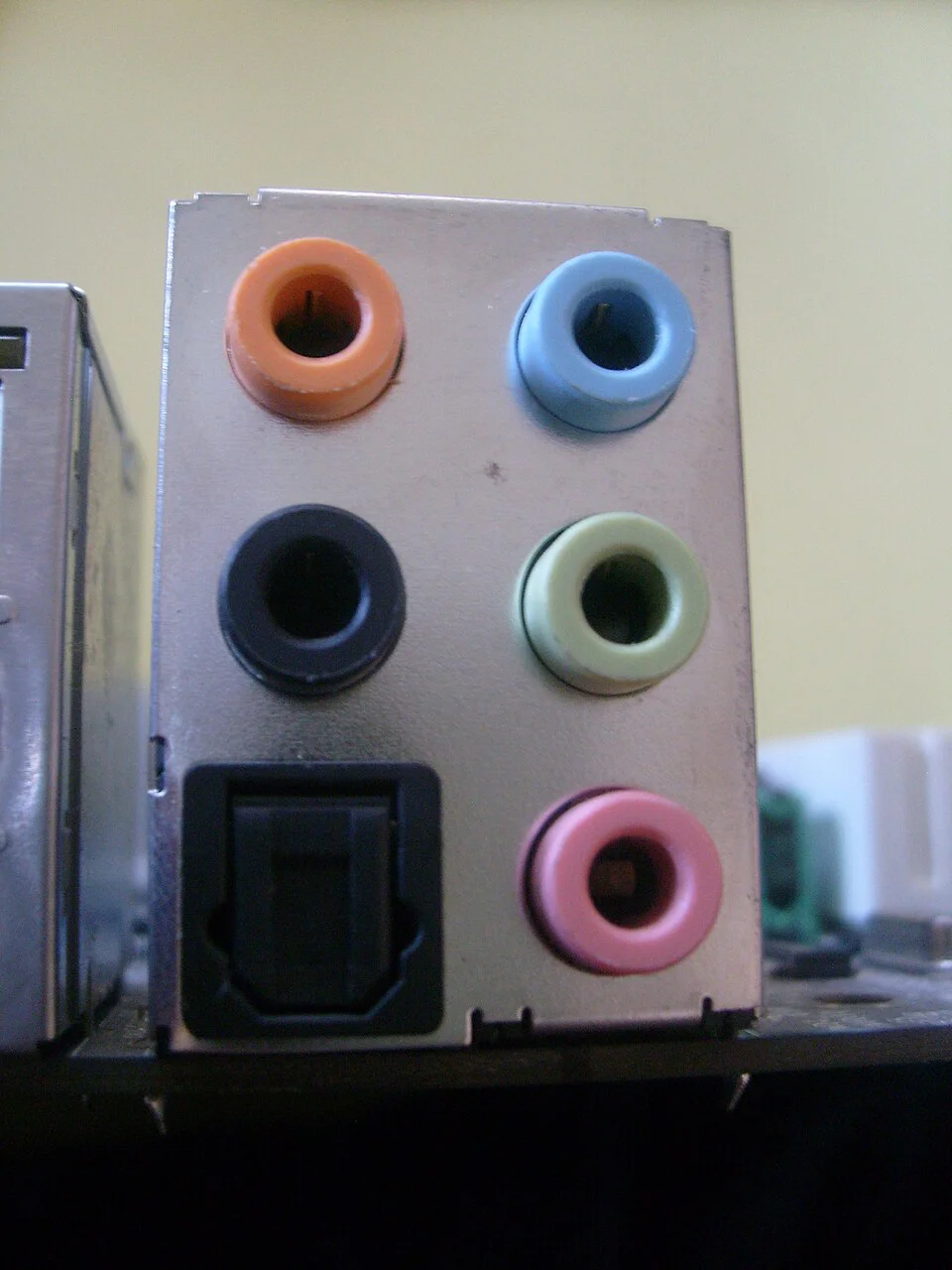
The reference photograph shows a square optical socket below colored analog sockets on a computer audio panel. It illustrates connector identification, not a TV connection or a measured result. Check the labels on your own equipment: the shape alone does not establish signal direction or format support.
6.Make the next test answer one question
Consider this hypothetical case: the TV's internal app plays through the soundbar, but a console connected to the TV by HDMI does not. The optical link has already worked for the internal-app test. Start by checking the console's documented output and the TV's handling of that input. Replacing the soundbar at this point would skip the evidence you already have.
A useful test note has five fields: source and programme, selected TV output, selected audio-system input, output format and result. Add one sentence describing the change. For example: “Kept the cable and input; selected stereo PCM; dialogue became audible.” That is more actionable than “changed some settings and it worked.”
Once a stable route works, restore only the settings you understand and need. A troubleshooting baseline need not become your permanent surround configuration.
7.Know when to stop
Use the manufacturer's support procedure for firmware checks or resets; do not make a factory reset the first experiment. Before contacting support, collect model names, firmware versions, the port labels and your short comparison record. Include whether an internal app and an external source behave differently.
Stop using equipment with damaged sockets, overheating or abnormal electrical behaviour. A guide to signal routing is not a substitute for repair. If the failure persists with a documented compatible route, provide the record to the manufacturer or a qualified service provider rather than repeatedly changing unrelated settings.
8.Key terms and common questions
(1)Common optical-audio questions
Does PCM working mean my optical cable is fine?
It shows that the cable and selected route carried that test signal at that time. It does not establish support for the previous format or rule out an intermittent connection. Repeat the same comparison before drawing a broader conclusion.
Should I buy an optical-to-RCA adapter?
First determine whether conversion is needed. A simple cable cannot turn a digital optical signal into analog audio. An active converter must accept the incoming format and provide the output your amplifier needs. Check those requirements before choosing hardware.
Why does one app work while another is silent?
Compare the programme and track, then the TV output setting and destination support. The working app is a useful reference; it does not prove that both apps provide identical audio.
9.Technical references and editorial scope
- Sony: TV optical-output troubleshooting ↗
- Sony STR-DN1080: supported formats by connection ↗
- Samsung: change the audio format ↗
- Samsung: connect using an optical cable ↗
Research-based educational guidance. Sources support fact checking; they are not text to reproduce. No original measurements or hands-on product test are claimed. Follow the instructions for your equipment. Our editorial and corrections policy.
Have a question or spotted a correction? Write to the editors ↗